LUPMIS - GIS User Manual for Land Use Planning
Main menu:
- Home Page
- 0. Rationale
- 1. GIS handling
- 2. GIS data entry
- 2.1 Create new layer
- 2.2 Digitize line
- 2.3 Digitize point
- 2.4 Digitize polygon
- 2.5 Edit existing layer
- 2.6 Delete feature
- 2.7 Split line
- 2.8 Split polygon
- 2.9 Merge lines from different layers
- 2.10 Unite lines
- 2.11 Snap lines
- 2.12 Join polygons
- 2.13 Extend polygon
- 2.14 Insert island
- 2.15 Define unit surrounding islands
- 2.16 Create 'doughnut'
- 2.17 Fill 'doughnut' polygon
- 2.18 Fill polygon with 'holes'
- 2.19 Digitize parcels from sector layout
- 3. GIS operations
- 3.1 Create buffer
- 3.2 Create exclusion zone
- 3.3 Overlay units
- 3.4 Convert line to polygon
- 3.5 Derive statistics (area size, length)
- 3.6 Clip unit according to other unit
- 3.7 Create geographic grid
- 3.8 Move entire vector map
- 3.9 Move or copy individual features on a map
- 3.10 Adjust polygon to line
- 3.11 Convert points to polygon
- 3.12 Define by distance
- 3.13 Create multiple objects
- 3.14 Transfer styles from one layer to another
- 4. Attribute database
- 4.1 Start with database
- 4.2 Import database
- 4.3 Display database information
- 4.4 Enter attribute data
- 4.5 Attribute matrix of multiple layers
- 4.6 Seeds
- 4.7 Repair attribute data
- 4.8 Merge lines with attached database
- 4.9 Transfer attribute data from points to polygons
- 4.10 Copy styles, labels, attributes
- 5. Conversion of data
- 5.1 Points
- 5.1.1 Import list of points from text file
- 5.1.2 Import list of points from Excel file
- 5.1.3 Convert point coordinates between projections
- 5.1.4 Convert point coordinates from Ghana War Office (feet)
- 5.1.5 Convert point coordinates from Ghana Clark 1880 (feet)
- 5.1.6 Track with GPS
- 5.1.7 Download GPS track from Garmin
- 5.1.8 Download GPS track from PDA
- 5.2 Vector maps
- 5.3 Raster maps
- 5.3.1 Import raster map from external source
- 5.3.2 Quality-check raster file
- 5.3.3 Georeference scanned map
- 5.3.4 Re-georeference image
- 5.3.5 Load sector layout map
- 5.3.6 Shift raster map
- 5.3.7 Download Google Earth image
- 5.3.8 Clipping and masking images
- 5.3.9 Enhance georeferenced image
- 5.3.10 Batch-convert raster images
- 5.4 Communication with other GIS programs
- 5.4.1 Import GIS data from SHP format
- 5.4.2 Import GIS data from E00 format
- 5.4.3 Import GIS data from AutoCAD
- 5.4.4 Export LUPMIS data to other programs
- 5.4.5 Export GIS to AutoCAD
- 5.4.6 Change a shape file to GPX
- 5.4.7 Transfer GIS data to other LUPMIS installations
- 5.4.8 Digitize lines in Google Earth
- 5.5 Terrain data
- 5.1 Points
- 6. Presentation
- 7. GIS for land use planning
- 8. LUPMIS Tools
- 9. Databases
- Annexes
- A1. Map Maker setup
- A2. Background to cartography and raster images
- A3. Glosssary
- A4. Troubleshooting
- A5. Styles
- A6. Classification for land use mapping and planning
- A7. GIS utilities
- A8. Map projection parameters
- A9. Maps in pilot areas
- A10.Standards
- A11. LUPMIS distribution CD
- A12. Garmin GPS
- A13. Training
- A14. ArcView
- A15. Population statistics
- A16. Entry and display of survey data
- A17. External exercises
- A18. Programming
- A19. Paper sizes
- A20. Various IT advices
- A21. Site map and references
A1.1 Installation and configuration
Annexes > A1. Map Maker setup
Annex 1: Map Maker Set-Up
Level of expertise required for this Chapter: Expert; specifically for LUPMIS @ TCPD
For system requirements see Annex 1.1.11 below, for hardware requirements see Annex 1.4.
A1.1 Installation and Configuration
Target to run LUPMIS like any other information system is to:
- Enable all TCPD offices to work in a structured way,
- Have coordinated and synchronized activities following national standards,
- Share and exchange experiences,
- Enable technology transfer and training and
- Give each other technical assistance.
It is therefore recommended that all TCPD offices working with GIS / LUPMIS have a standardized, identical Map Maker configuration.
Initialization files have been created to ease the set-up of Map Maker. Request these files from TCPD-HQ / LUPMIS ( email).

A1.1.1 Installation of LUPMIS through installation file
The installation of LUPMIS including all ' LUPMIS Tools' is done automatically from the InstallationCD. This includes installation of Map Maker, php, Apache, MySQL, xampp.
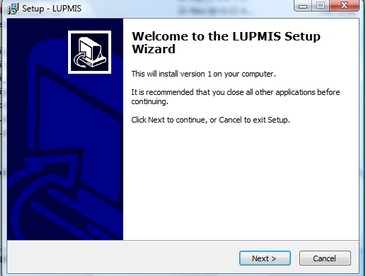
1. For the first time installation, select 'New installation with LUPMIS on drive C (step 1: Map Maker and xampp)' to install Map Maker and the webserver (Apache with php, MySQL database), but not the LUPMIS application itself.
Follow all instructions on screen. There are two installation processes running, one for Map Maker and one for Apache.
Reboot the computer thereafter.
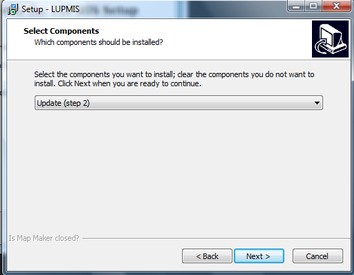
2. For the final LUPMIS installation and for any LUPMIS upgrade, select 'Update on drive C (step 2: LUPMIS with update, GIS utilities etc on C:)':
Technical note 1: At the first time running LUPMIS, you might have to 'Unblock' your firewall settings.
A1.1.2 Running LUPMIS
There are 3 steps to enter LUPMIS:
1. Start xampp: From the desktop shortcut, enter the XAMPP Control Panel and start Apache and MySQL:

Technical note 2: The xampp desktop icon is only a shortcut to the file xampp-control.exe in folder xampp.
Technical note 3: If you experience problems at this stage and the two running indicators do not appear or the Svc boxes are ticked and can not be un-ticked, trouble-shoot with Technical notes 6 below.
2. Start Map Maker: From the desktop, start Map Maker. It has to run when you use the 'LUPMIS Tools'.
Technical note 4: The Map Maker desktop icon is only a shortcut to the file MMM.exe in folder Map Maker.
3. Start the 'LUPMIS Tools' from the installed LUPMIS icon at your desktop:

or enter 'http://localhost/' in your Internet Explorer (see full explanation).
The ' LUPMIS Tools' consist currently of four tools:
- Drawing Tools to 'draw' graphical features in Map Maker, in particular useful for Local Plans.
- Printing Tools to produce high-quality, standardized map products
- Permit Tools to handle all aspects of Planning Permits
- Census Tools to store, retrieve and map population census data
- IGF Tools to store, retrieve and map internally generated funds (land tax)
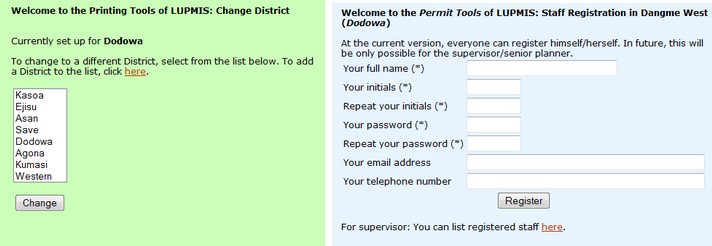
4. At first-time login to 'LUPMIS Tools', you have to register first your personal access (initials and password) and then your District:
Technical note 5: 'Local' installation in localhost is temporarily, until TCPD web server is cleared, up and running.
Technical note 6a: If Apache can not be started through Xampp Control Panel and you have Skype installed, stop Skype to use port 80 as alternative (Tools > Options > Advanced > Connection > Tick off the 'Use port 80...' option). Beside Skype, there are also known compatibility problems with IIS, World Wide Web Publishing and AVG antivirus. Check that port 80 is free for Xampp.
Technical note 6b: If you don't have a shortcut on your desktop, create one (Desktop > right-click > New > Shortcut > Location of the item: C:\xampp\xampp-control.exe >>>) with following parameters: Target: C:\xampp\xampp-control.exe, Start in: C:\xampp, Comment: XAMPP Control Panel.
Technical note 6c only for experienced IT users: If Xampp is still not running or the Xampp services are still on, un-install xampp completely and re-install:
- Un-install from Window's Control Panel, and reboot
- Remove all entries and references to xampp, Apache and MySQL in the registry, using regedit, and reboot
- Delete folder xampp in C:, and reboot
- Repeat install step 1 of LUPMIS installation (particularly, with xampp)
- Repeat install step 2 of LUPMIS installation
Technical note 6d: If you still have problems with xampp and/or an error message pops up saying that xampp can only be installed from the xampp directory, delete the shortcut to the xampp panel, and create a new shortcut to file xampp_start.exe in folder C:\xampp and place it on the desktop, preferably with the same logo. When pressing, it will show a black DOS screen: Minimize this.
Technical note 7: If a District wants to put its logo on top of the permits or siteplans, a graphic file with the name District_logo.bmp and a size of 472 x 472 pixels should be copied to folder C:\Map Maker\Configuration\GraphicSupport. If required, HQ will provide such a graphics file.
For finetuning, you should then:
- Configure the style to 'default' and
- Install the District's logo.
= = = = = = = = = =
A1.1.3 Manual set-up of Map Maker
Following description is only for technical documentation. It can be seen as an alternative method only in exceptional cases.
1. Preparation: Download the latest version of Map Maker from www.mapmaker.com or request it from TCPD-HQ / LUPMIS ( email). Be sure, that you also have the latest version of MMmacro.exe (June 09 or more recent). Have the LUPMIS distribution CD ready (see Annex 11, also online available).
2. Display:
Main menu > File > System set up > Preferences > Set up window: Preferences > Start up > Start up banner: ButtTCPD.jpg (if provided by the Project), all others boxes unchecked >
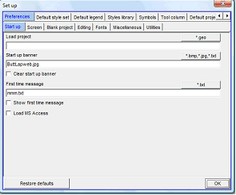
(Main menu > File > System set up > Preferences >) Set up window: Preferences > Screen > Untick ‘Clean screen’ > Tick ‘Show tool bar icons’ > Tick ‘Use on-screen layer manager’ > Tick ‘Use Windows file picker’ > Tick ‘Show scale bar’ > Tick ‘Show clock on menu bar’ > Untick ‘Hide scroll bar’ > Untick ‘No exit’ > Tick ‘Fast menu’ > Untick ‘UK OS coordinates’ > Tick ‘Show Lat/Long coordinates’ > Untick ‘solid white symbols’ >
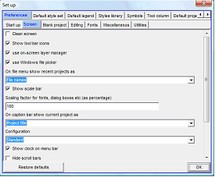
(Main menu > File > System set up > Preferences >) Set up window: Tool column > Available tools: With the Add, Move up, Move down buttons you create following list on the right side (custom tool bar):
Pan by dragging, Zoom to box, Tape measure, Data query, divider, divider, divider, Polygon, Line, Symbol, Text, divider, divider, divider, Cutter, Join, Snap, divider, divider, divider, Edit Object, Select > OK
3. Units:
Main menu > File > System set up > Preferences > Set up window: Preferences > Miscellaneous: Date format: day / month / year > Tick ‘Assume Lat/Long if in range’ > Untick all other boxes >
(Main menu > File > System set up > Preferences >) Set up window: Units and scales > metres / 0 / hectares / 1 / mms / mms / LongLat in decimal degrees > OK
4. Editing Mode:
Check following boxes (on):
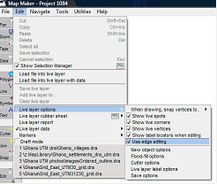
Main menu > Edit > Live layer data > Use live data
Main menu > Edit > Live layer data > Initialize live layer data
Main menu > Edit > Live layer options > all
5. Projection (UTM 30):
Main menu > Utilities > Latitude and Longitude utilities > Create projection > Edit projection window: Projection name: Write ‘UTM 30’ > Projection system > Universal Transverse Mercator (UTM) > UTM zone 30 > OK
Main menu > Utilities > Latitude and Longitude utilities > Edit projection > Choose map projection window: Delete all existing projections, except ‘UTM 30’ > OK
Main menu > File > System set up > Preferences > Set up window: Default projection > Projection system > Universal Transverse Mercator (UTM) > UTM zone 30 > OK
6. If you work with data in the obsolete Ghana Grid projection (‘War Office’), you have to enter the definition of the Ghana Grid:
Main menu > Utilities > Latitude and Longitude utilities > Datums > Create datum > Edit datum window: Create ellipsoid > Edit ellipsoid window: Name: War Office, Semi-axis Major: 6378300, Flattening 1/: 296, with 6356751…. appearing in the Semi-axis Minor window > OK > Edit datum window: Name: Accra (War Office) in m > Location: Ghana, Geoccentric shift relative to WGS84: dx: -196.24 > dy: 33.38 > dz: 322.76 > Use Molondenski parameters: da: -163 > df x 10000:
-0.25567 > OK
Main menu > Utilities > Latitude and Longitude utilities > Create projection > Edit projection window: Projection name: Ghana Grid > Projection system > Transverse Mercator > Scale factor: 0.99975 > Origin Longitude: -1 > Origin Latitude: 4.66666666 > Origin Easting: 274320 > Origin Northing: 0 > OK
Main menu > Utilities > Latitude and Longitude utilities > Edit projection > Choose map projection window: Select Ghana Grid > OK > Edit projection window > Datum > Accra (War Office) in m: Ghana > OK
See also Annex 8 for different projection definitions.
7. Cutter Options
Main menu > Edit > Live layer options > Cutter options > Cutter options window: All three boxes should be ticked > Labels of new polygons: Retain original > OK
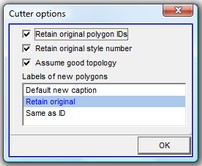
See Chapters 2.7 to split lines, 2.8 to split polygons, 2.13 to extend polygons, which are relevant for the cutter options.
8. Style Sets
Request preconfigured style files from HQ and copy them to folder C:\Map Maker\Configuration\Style library. For installation process, see step 4 of Annex 1.1.
8.1 Check:
Main menu > File > System set up > Styles library > Set up window: Styles library > Check under Library style sets, if all preconfigured LUPMIS styles are already installed.
If not, continue with: Import style set > Select folder Map Maker --> Library > Style file > OK and repeat this process for all styles libraries.
8.2 For the default style:
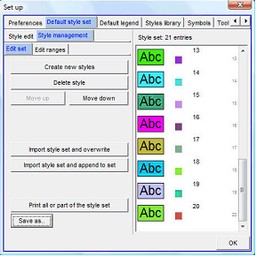
Main menu > File > System set up > Preferences > Set up window: Default style set > Style management > Import style set and overwrite > Choose style set window: Default (If Default is not listed: Browse > Select folder Map Maker --> Library > Default.stl > Open) > OK
9. Templates
Request preconfigured template files from HQ and copy them to folder C:\Map Maker\Configuration\Templates. For installation process, see step 5 of Annex 1.1.
- - - - -
A1.1.4 Fast installation of Map Maker
If you want to run Map Maker without the specific settings for LUPMIS, you can have a basic installation of Map Maker. With this installation, do not expect to run Map Maker with all the options and procedures as explained in this Manual.
Install Map Maper to the default folder C:\Map Maker by double-click on the Map Maker file (mmzip.exe) and follow the instructions on screen.
Start running Map Maker > Unlicenced copy of Map Maker Pro window: To permanently unlock Map Maker Pro enter the licence number here > Map Maker Pro licence window: Enter your registered user name > Enter your licence number (both of them are provided by HQ) > OK > Licenced copy of Map Maker Pro window
Map Maker should be configured to work in UTM 30 projection:
Main menu > Utilities > Latitude and Longitude utilities > Create projection > Edit projection window: Projection name: Write ‘UTM 30’ > Projection system > Universal Transverse Mercator (UTM) > UTM zone 30 > OK
Main menu > Utilities > Latitude and Longitude utilities > Edit projection > Choose map projection window: Delete all existing projections, except ‘UTM 30’ > OK
Main menu > File > System set up > Preferences > Set up window: Default projection > Projection system > Universal Transverse Mercator (UTM) > UTM zone 30 > OK
A1.1.5 System requirements of LUPMIS
Minimum system requirements of running Map Maker are very small (512 kB RAM, 20 MB of free harddisk space, with Windows XP, Vista or 7).
To run LUPMIS without major problems and in a multitasking environment, it is recommended to have 2 GB RAM, at least 10 GB of originally free harddisk space (depending on the amount and type of data), and to have Windows Vista or 7 installed.
A1.1.6 Uninstall Map Maker
To uninstall Map Maker, you have to:
- Use the Uninstall option of Map Maker, or through the Control Panel, then
- Delete all remaining folders:
- C:\Map Maker
- C:\Users\(current account name)\AppData\Map Maker (in Vista) or C:\Documents and Settings\(current account name)\Application Data\Map Maker (in XP), then
- Delete all entries in the registry (with regedit from Window’s run command)
A1.1.7 Install District logo
You should have your District's logo appear on all maps, permits, revenue Demand Notices and site plans: Resize your logo to size of 472 x 472 pixels and save it in following formats and locations:
- As BMP file District_logo_xxxx.bmp (where xxx = name of your District, as installed in LUPMIS, e.g. District_logo_Dodowa.bmp) in folder C:\ LUPMIS \ LUPMISPrograms \ GraphicSupport
- As JPG file District_logo_xxxx.jpg (e.g. District_logo_Dodowa.jpg) in the same folder C:\ LUPMIS \ LUPMISPrograms \ GraphicSupport ,
- As transparent GIF file District_logo_xxxx.gif (e.g. District_logo_Dodowa.gif) in folder C:\ xampp \ htdocs \ lupmis \ img.
If you want a signature to appear at the Demand Notices, scan and copy it to JPG file Signature_dir_xxxx.jpg (e.g. Signature_dir_Dodowa.jpg) in folder C:\ LUPMIS \ xxx \ xxx rev \ Tools (e.g. C:\ LUPMIS \ Dodowa \ Dodowa rev \ Tools).


Sub-Menu:
- A1.1 Installation and configuration ←
- A1.2 Technical standards
- A1.3 Installation of Garmin driver
- A1.4 Hardware
- A1.5 xampp/Map Maker installation