LUPMIS - GIS User Manual for Land Use Planning
Main menu:
- Home Page
- 0. Rationale
- 1. GIS handling
- 2. GIS data entry
- 2.1 Create new layer
- 2.2 Digitize line
- 2.3 Digitize point
- 2.4 Digitize polygon
- 2.5 Edit existing layer
- 2.6 Delete feature
- 2.7 Split line
- 2.8 Split polygon
- 2.9 Merge lines from different layers
- 2.10 Unite lines
- 2.11 Snap lines
- 2.12 Join polygons
- 2.13 Extend polygon
- 2.14 Insert island
- 2.15 Define unit surrounding islands
- 2.16 Create 'doughnut'
- 2.17 Fill 'doughnut' polygon
- 2.18 Fill polygon with 'holes'
- 2.19 Digitize parcels from sector layout
- 3. GIS operations
- 3.1 Create buffer
- 3.2 Create exclusion zone
- 3.3 Overlay units
- 3.4 Convert line to polygon
- 3.5 Derive statistics (area size, length)
- 3.6 Clip unit according to other unit
- 3.7 Create geographic grid
- 3.8 Move entire vector map
- 3.9 Move or copy individual features on a map
- 3.10 Adjust polygon to line
- 3.11 Convert points to polygon
- 3.12 Define by distance
- 3.13 Create multiple objects
- 3.14 Transfer styles from one layer to another
- 4. Attribute database
- 4.1 Start with database
- 4.2 Import database
- 4.3 Display database information
- 4.4 Enter attribute data
- 4.5 Attribute matrix of multiple layers
- 4.6 Seeds
- 4.7 Repair attribute data
- 4.8 Merge lines with attached database
- 4.9 Transfer attribute data from points to polygons
- 4.10 Copy styles, labels, attributes
- 5. Conversion of data
- 5.1 Points
- 5.1.1 Import list of points from text file
- 5.1.2 Import list of points from Excel file
- 5.1.3 Convert point coordinates between projections
- 5.1.4 Convert point coordinates from Ghana War Office (feet)
- 5.1.5 Convert point coordinates from Ghana Clark 1880 (feet)
- 5.1.6 Track with GPS
- 5.1.7 Download GPS track from Garmin
- 5.1.8 Download GPS track from PDA
- 5.2 Vector maps
- 5.3 Raster maps
- 5.3.1 Import raster map from external source
- 5.3.2 Quality-check raster file
- 5.3.3 Georeference scanned map
- 5.3.4 Re-georeference image
- 5.3.5 Load sector layout map
- 5.3.6 Shift raster map
- 5.3.7 Download Google Earth image
- 5.3.8 Clipping and masking images
- 5.3.9 Enhance georeferenced image
- 5.3.10 Batch-convert raster images
- 5.4 Communication with other GIS programs
- 5.4.1 Import GIS data from SHP format
- 5.4.2 Import GIS data from E00 format
- 5.4.3 Import GIS data from AutoCAD
- 5.4.4 Export LUPMIS data to other programs
- 5.4.5 Export GIS to AutoCAD
- 5.4.6 Change a shape file to GPX
- 5.4.7 Transfer GIS data to other LUPMIS installations
- 5.4.8 Digitize lines in Google Earth
- 5.5 Terrain data
- 5.1 Points
- 6. Presentation
- 7. GIS for land use planning
- 8. LUPMIS Tools
- 9. Databases
- Annexes
- A1. Map Maker setup
- A2. Background to cartography and raster images
- A3. Glosssary
- A4. Troubleshooting
- A5. Styles
- A6. Classification for land use mapping and planning
- A7. GIS utilities
- A8. Map projection parameters
- A9. Maps in pilot areas
- A10.Standards
- A11. LUPMIS distribution CD
- A12. Garmin GPS
- A13. Training
- A14. ArcView
- A15. Population statistics
- A16. Entry and display of survey data
- A17. External exercises
- A18. Programming
- A19. Paper sizes
- A20. Various IT advices
- A21. Site map and references
6.9 External display of features
6. Presentation
6.9 External Display of Features
Level of expertise required for this Chapter: Advanced; general Map Maker training
There are various ways to display additional information on-screen - beside the map display (see Chapter 1.2).
6.9.1 Retrieve Database Information
Information of the database (attribute data) can be retrieved either in tabular form, when clicking on the unit, or as a thematic, coloured map. The procedures are explained in Chapter 4.3.
6.9.2 Link to External Documents
It is possible to link an external document, which refers to a geographical unit, and have a specific document displayed, when clicking on the unit. An ‘external document’ can be a Word document, a graphic file, a PDF file or similar, including the possibility to edit the document after being loaded.
For example, when clicking on a parcel, LUPMIS will then show the application form, the permit issued (see Chapter 9.1 for Permit Database), a photograph or similar. (See also Annex 18.2 and 18.3 for IT implementation).
Currently, it is possible to have following data of the DRA file as references:
- id
- style
- label
The item in the id, style or label field must have an equivalent file name (without extension). For parcel references, the easiest is to have the UPN (see Chapter 7.8.1) as the display label and files with the file name of the UPN.
In the Project manager window: Select the layer (1, see below) > Data link (2) > On-hit (3) > Tick ‘Make layer hit-able’ (4) > Document or link (5) > Link layer (6) > EXE (7) > Change Program > Select folder and file of program (8, see table below for some program examples, others are possible) > Send parameters: Specify path, data field in parentheses (<>) and extension (9, see examples below), all in double quotations) > OK (10)
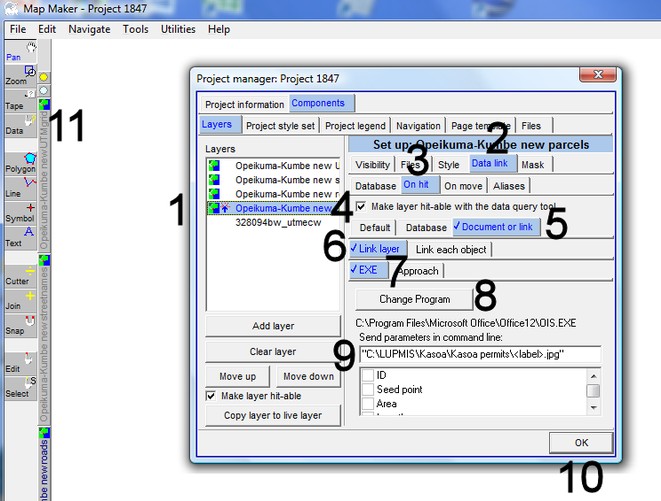
You will have to select the Data-tool on the toolbar left (11) and click on the unit of interest.
Examples of calling programs (step 8):
Program |
Program file |
For display of: |
MS Office Picture Manager |
C:\Program Files\Microsoft Office\Office12\OIS.EXE |
For graphic files: JPG, BMP, TIF etc |
MS Word |
C:\Program Files\Microsoft Office\Office12\WINWORD.EXE |
For Word documents (DOC, DOCX) |
Adobe Acrobat Reader |
C:\Program Files\Adobe\Acrobat 7.0\Reader\AcroRd32.exe |
For PDF documents (PDF) |
MS Excel |
C:\Program Files\Microsoft Office\Office12\EXCEL.EXE |
For Excel spreadsheets (XLS, XLSX) |
Examples of the command line entry (step 9, observe the double quotations):
“C:\LUPMIS\Permits\Kasoa_Permits\<label>.jpg”
“C:\LUPMIS\Permits\Ejisu_Permits\<style>.docx”
“C:\LUPMIS\Temp\<id>.pdf”
The location (path) of the program file might be different due to different installations and operating systems.
After you have set up the link reference, you better save it as a project (Main menu > File > Save project as), because any copying to the live layer or temporary other hit-definitions will delete the original link reference.
See also Annex 17.3 for examples.
- - - - -
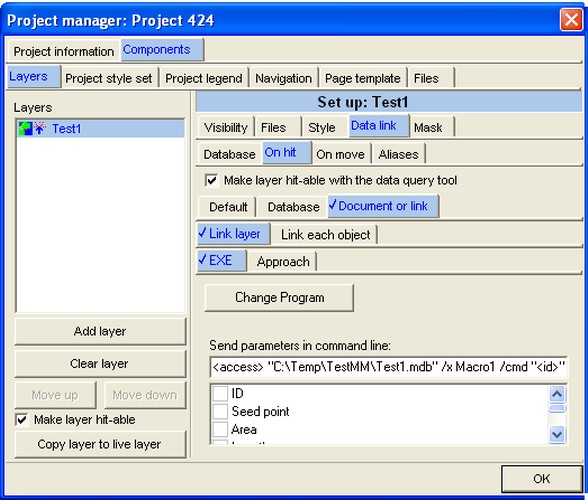
Alternatively, you can call a macro in MS Access, even without the Change Program selection with following syntax:
<access> "Databasefile.mdb" /x Macro1 /cmd "<id>"
For example:
<access> "C:\LUPMIS\Permits\Kasoa_Permits.mdb" /x Macro1 /cmd "<id>"
- - - - -
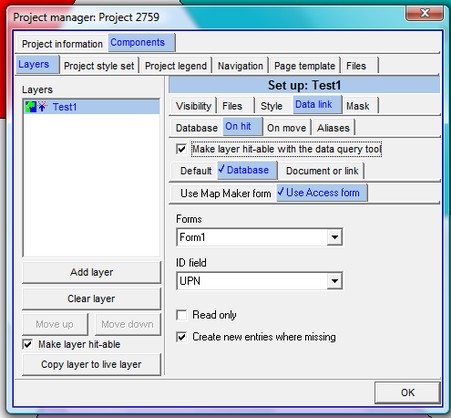
Alternatively, MS Access data can be called through an Access form (active, if an MDB file has been loaded): Project manager > Data link > Database > Choose database > File type: MDB > Select folder and file > Open > Choose Access table window: Select table > OK > On hit > Tick ‘Make layer hit-able’ > Database > Use Access form > Select form > Select id field (reference in form) > OK


Sub-Menu:
- 6.1 Labels
- 6.2 Styles and Symbols
- 6.3 Marginalia
- 6.4 Legend
- 6.5 Map template
- 6.6 Final print
- 6.7 Print to file
- 6.8 3D visualization
- 6.9 External display of features ←
- 6.10 Google